


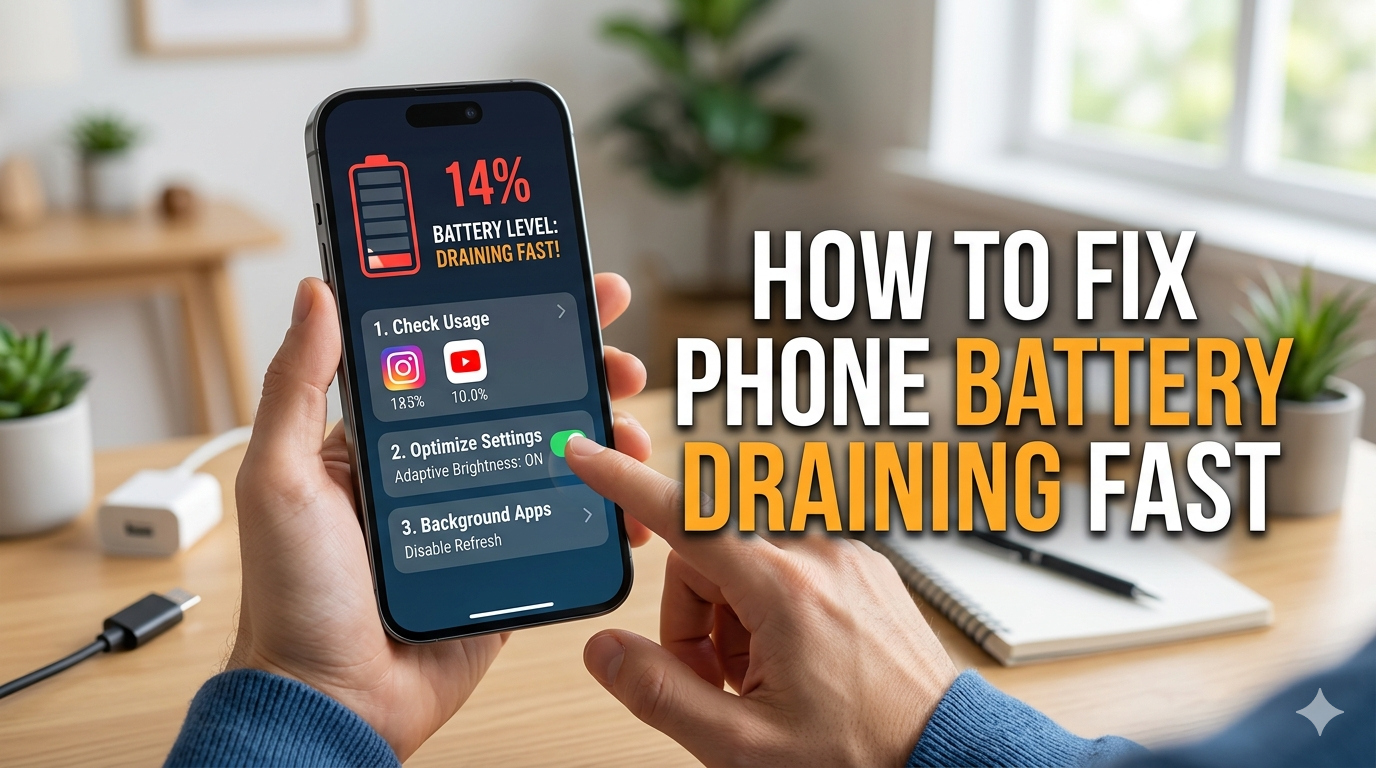
Smartphones have become an essential part of daily life, but nothing is more frustrating than seeing your battery percentage drop rapidly. If you’ve been wondering why your phone battery drains so fast and how to fix it, you’re not alone.
Battery drain can happen due to excessive background activity, outdated software, high screen brightness, poor network signals, or aging batteries. Fortunately, most battery problems can be fixed without replacing your device.
In this guide, you’ll discover the common causes of fast battery drain and practical solutions that can significantly improve battery life.
Why Is My Phone Battery Draining So Fast?
Several factors can cause excessive battery consumption, including:
- High screen brightness
- Background apps running continuously
- Location services and GPS
- Bluetooth and Wi-Fi left on unnecessarily
- Outdated software
- Poor network reception
- Push notifications from many apps
- Battery aging and wear
Identifying the source of the problem is the first step toward restoring normal battery performance.
1. Reduce Screen Brightness
The display is one of the biggest battery consumers on any smartphone.
How to Fix It
- Lower brightness manually.
- Enable Adaptive Brightness or Auto-Brightness.
- Use Dark Mode if your device has an OLED display.
Reducing brightness alone can noticeably extend battery life.
2. Close Background Apps
Many applications continue running even when you’re not actively using them.
Android
- Go to Settings > Battery > Battery Usage
- Identify apps consuming excessive power.
- Restrict unnecessary background activity.
iPhone
- Open Settings > Battery
- Check battery usage statistics.
- Disable Background App Refresh for unused apps.
Apps like Facebook, TikTok, Instagram, and Snapchat are often major battery consumers.
3. Turn On Battery Saver Mode
Modern smartphones include battery-saving features that reduce background processes and limit power-hungry activities.
Android
Enable:
Settings > Battery > Battery Saver
iPhone
Enable:
Settings > Battery > Low Power Mode
Battery Saver Mode can extend usage by several hours.
4. Disable Unused Connectivity Features
Features such as Bluetooth, Wi-Fi, GPS, NFC, and mobile hotspots consume power even when not actively used.
Turn off:
- Bluetooth
- GPS
- Mobile Hotspot
- NFC
- Wi-Fi when away from known networks
Doing this prevents unnecessary battery consumption.
5. Update Your Phone Software
Manufacturers frequently release updates that improve battery optimization.
To update:
Android
Settings > Software Update
iPhone
Settings > General > Software Update
Keeping your device updated helps fix bugs that may be causing battery drain.
6. Reduce Screen Timeout
A screen that stays on too long wastes battery power.
Recommended timeout settings:
- 15 seconds
- 30 seconds
- 1 minute maximum
Shorter screen timeout settings help conserve energy throughout the day.
7. Disable Background App Refresh
Apps constantly refreshing content consume power unnecessarily.
iPhone
Settings > General > Background App Refresh
Turn off for apps you don’t frequently use.
Android
Settings > Apps > Battery > Restrict Background Usage
This simple adjustment often improves battery life considerably.
8. Manage Notifications
Every notification activates your screen and processor.
Disable notifications for:
- Shopping apps
- Gaming apps
- Social media apps
- Unused applications
Fewer notifications mean less battery consumption.
9. Use Dark Mode
Dark Mode is especially effective on OLED displays because black pixels consume less energy.
Enable Dark Mode
Android
Settings > Display > Dark Theme
iPhone
Settings > Display & Brightness > Dark
Besides saving battery, Dark Mode also reduces eye strain.
10. Check Battery Health
Batteries degrade over time.
iPhone
Settings > Battery > Battery Health
If Maximum Capacity drops below 80%, battery replacement may be necessary.
Android
Some manufacturers provide battery diagnostics within Device Care or Support settings.
An aging battery naturally loses its ability to hold a charge.
11. Remove Battery-Hungry Apps
Certain applications are notorious for excessive battery consumption.
Examples include:
- TikTok
- Snapchat
- Gaming apps
If an app consistently appears at the top of battery usage statistics, consider uninstalling it or limiting its permissions.
12. Improve Network Signal
Poor cellular reception forces your phone to work harder searching for a signal.
Solutions:
- Move to an area with stronger coverage.
- Use Wi-Fi whenever possible.
- Enable Airplane Mode in areas with weak reception.
Weak signals can dramatically reduce battery life.
13. Restart Your Phone
A simple restart clears temporary processes and system glitches.
Restarting your device once every few days can help maintain optimal battery performance.
14. Avoid Extreme Temperatures
Heat damages battery health and accelerates battery degradation.
Avoid:
- Direct sunlight
- Leaving the phone inside a hot car
- Charging under pillows or blankets
Ideal operating temperatures help prolong battery lifespan.
15. Replace an Old Battery
Lithium-ion batteries wear out over time.
Signs that replacement is necessary include:
- Battery draining unusually fast
- Random shutdowns
- Overheating
- Swollen battery
- Capacity below 80%
Replacing the battery can restore your phone’s original performance.
Additional Battery-Saving Tips
To maximize battery life:
- Use Wi-Fi instead of mobile data when available.
- Disable Always-On Display if unnecessary.
- Avoid live wallpapers.
- Turn off vibration feedback.
- Use original chargers and accessories.
- Avoid charging overnight continuously.
- Keep your phone software updated.
Frequently Asked Questions
Why does my phone battery drain even when I’m not using it?
Background apps, notifications, weak network signals, and system processes continue consuming power even when the phone is idle.
Why is my battery draining after an update?
New updates sometimes require indexing and optimization processes. Battery performance usually stabilizes after a few days.
Is fast charging bad for battery life?
Modern smartphones are designed for fast charging. However, excessive heat generated during charging can shorten battery lifespan over time.
When should I replace my battery?
If battery health falls below 80% or you experience frequent shutdowns and rapid draining, replacement is recommended.
Fast battery drain is a common problem, but it is usually fixable. By reducing screen brightness, managing background apps, enabling battery-saving features, updating software, and checking battery health, you can significantly improve your phone’s battery life.
If none of these solutions work, the battery itself may have reached the end of its lifespan and replacing it could restore your device to normal performance.
With proper care and optimization, most smartphones can maintain excellent battery performance for years.
Rank Math SEO Settings
Focus Keyword
Additional Keywords
- why is my phone battery draining so fast
- phone battery draining fast
- how to improve phone battery life
- battery draining quickly Android
- battery draining quickly iPhone
- fix battery drain on smartphone
- smartphone battery tips
- extend phone battery life
- battery saver tips
- why does my battery die so fast

