


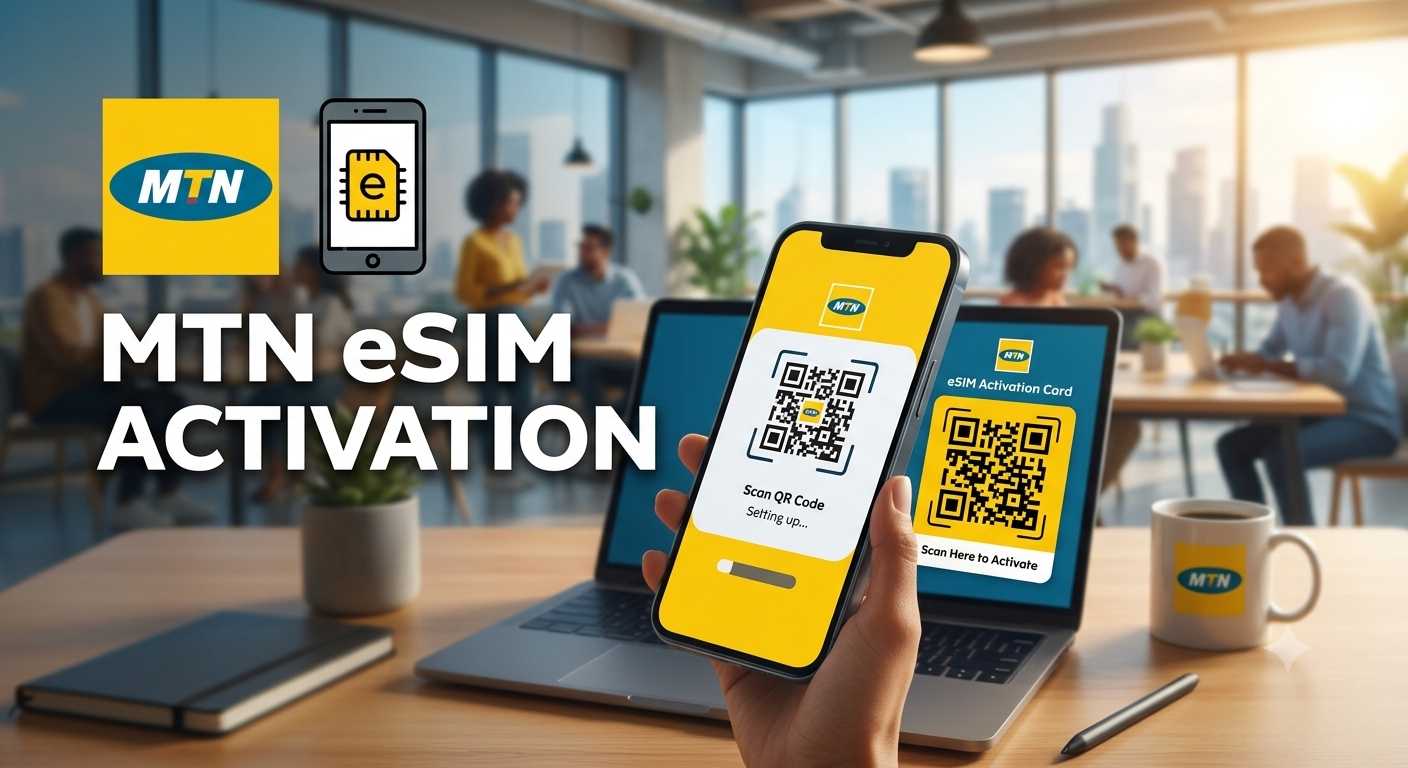
Moving from a physical SIM card to an eSIM (Embedded SIM) is one of the best upgrades you can make for your smartphone. Whether you are using a newer digital-only iPhone, a flagship Samsung Galaxy, or simply want to free up your physical SIM slot for dual-SIM functionality, setting up an eSIM on the MTN network is straightforward—if you know the exact steps.
In this comprehensive 2026 guide, we will break down how to check if your phone is compatible, the exact steps for MTN eSIM activation, and what to do if you encounter any glitches during setup.
Which Phones Support MTN eSIM in Nigeria?
Before heading out or trying to activate your digital SIM, you must verify that your smartphone hardware supports eSIM technology.
Supported Apple iPhones:
- iPhone XR, XS, XS Max
- iPhone 11, 12, 13, 14, 15, and 16 series (All models)
- iPhone SE (2nd generation or later)
Supported Samsung Galaxy Devices:
- Samsung Galaxy S20, S21, S22, S23, S24, S25, and S26 series
- Samsung Galaxy Note 20 / Note 20 Ultra
- Samsung Galaxy Z Fold and Z Flip (All generations)
Supported Google Pixel Devices:
- Google Pixel 4, 5, 6, 7, 8, 9, and 10 series
Pro Tip: To double-check your device compatibility, dial
*#06#on your phone. If you see an EID number (Embedded Identity Document) listed alongside your IMEI numbers, your phone is eSIM-ready.
Step-by-Step: How to Get and Activate Your MTN eSIM
Step 1:Visit an MTN Service Centre
Walk into the nearest MTN main office with your eSIM-compatible smartphone, a valid government-issued ID, and your National Identification Number (NIN).Step 2:Request an eSIM Upgrade Voucher
An MTN customer service representative will capture your biometrics, link your NIN, and print out a customized eSIM Activation Voucher containing your unique QR Code.Step 3:Scan the QR Code to Activate
Connect your phone to a stable Wi-Fi network. Go to your phone's Network Settings, select "Add eSIM" or "Add Mobile Plan", and scan the QR code from your MTN voucher using your device's camera.Currently, to ensure security and prevent SIM-swap fraud, MTN Nigeria requires a one-time physical verification or official digital portal verification to generate your unique eSIM profile.
Step 1: Visit an MTN Service Centre or Certified Walk-In Clinic
You will need to walk into the nearest MTN main office. Ensure you carry the following items with you:
- The eSIM-compatible smartphone you want to activate.
- A valid government-issued ID (National ID Card/NIN, International Passport, or Driver’s License).
- Your National Identification Number (NIN) linked to your current phone number.
Step 2: Request an eSIM Upgrade
An MTN customer service representative will capture your biometrics, link your NIN, and generate a customized eSIM Activation Voucher. This voucher contains a unique QR Code, a PIN, and a PUK code.
Note: The initial eSIM activation or swap fee is typically free or attracts a nominal charge of less than ₦1,000 depending on current promotional windows.
Step 3: Scan the QR Code to Activate the Profile
Make sure your phone is connected to a stable Wi-Fi network (you can ask to connect to the MTN center’s Wi-Fi if your cellular data is currently offline).
For iPhone Users (iOS):
- Go to Settings > Cellular (or Mobile Service).
- Tap on Add eSIM (or Add Cellular Plan).
- Select Use QR Code.
- Position your iPhone camera over the QR code provided on your MTN voucher.
- Follow the on-screen prompts to label your new plan (e.g., “MTN eSIM”) and set it as your primary or secondary line.
For Android Users (Samsung/Pixel/Tecno):
- Open Settings > Connections > SIM Manager.
- Tap on Add eSIM or Add Mobile Plan.
- Select Scan QR Code from Service Provider.
- Scan the QR code on your voucher.
- Confirm the download of the MTN cellular profile.
Troubleshooting Common MTN eSIM Activation Issues
Sometimes, the activation process doesn’t go smoothly. Here are the top three fixes if you hit a wall:
1. Error: “QR Code No Longer Valid” or “Could Not Set Up Cellular Plan”
This usually happens if your Wi-Fi connection drops mid-download.
- The Fix: Restart your phone, connect to a stronger Wi-Fi network, and try scanning again. If it fails repeatedly, the profile may have partially installed. Check your SIM manager to see if an inactive profile exists; delete it and try once more.
2. No Network Bars After Successful Activation
If the QR code was accepted but you see “No Service”:
- The Fix: Your old physical SIM might still be active. Pull out the physical SIM card tray from your device. Restart your phone. The network should switch entirely to your new digital eSIM profile within 5 to 10 minutes.
3. Missing 4G/5G Options in Settings
- The Fix: Go to your Network Settings, toggle Mobile Data off and on, and ensure your “Preferred Network Type” is set to 5G/4G/3G Auto.
Frequently Asked Questions (FAQs)
Can I use my physical SIM and eSIM at the same time?
Yes! If your phone supports Dual-SIM functionality, you can run your MTN eSIM alongside a physical SIM card from another network (like Airtel or Glo) simultaneously.
What happens if I reset my phone?
If you perform a factory reset, you must look for the checkbox that says “Retain eSIM profiles” to avoid wiping your network settings. If you accidentally delete it, you will need to revisit an MTN store to get a replacement QR voucher.
Can I transfer my eSIM to another phone?
No, you cannot simply scan the same QR code on a second phone. For security reasons, an eSIM QR code can only be downloaded once. To move it to a new device, you must visit an MTN center for an eSIM device swap.
Have you successfully switched to an eSIM yet? If you ran into any unexpected errors during your activation, drop a comment below and our technical team will help you troubleshoot!

