


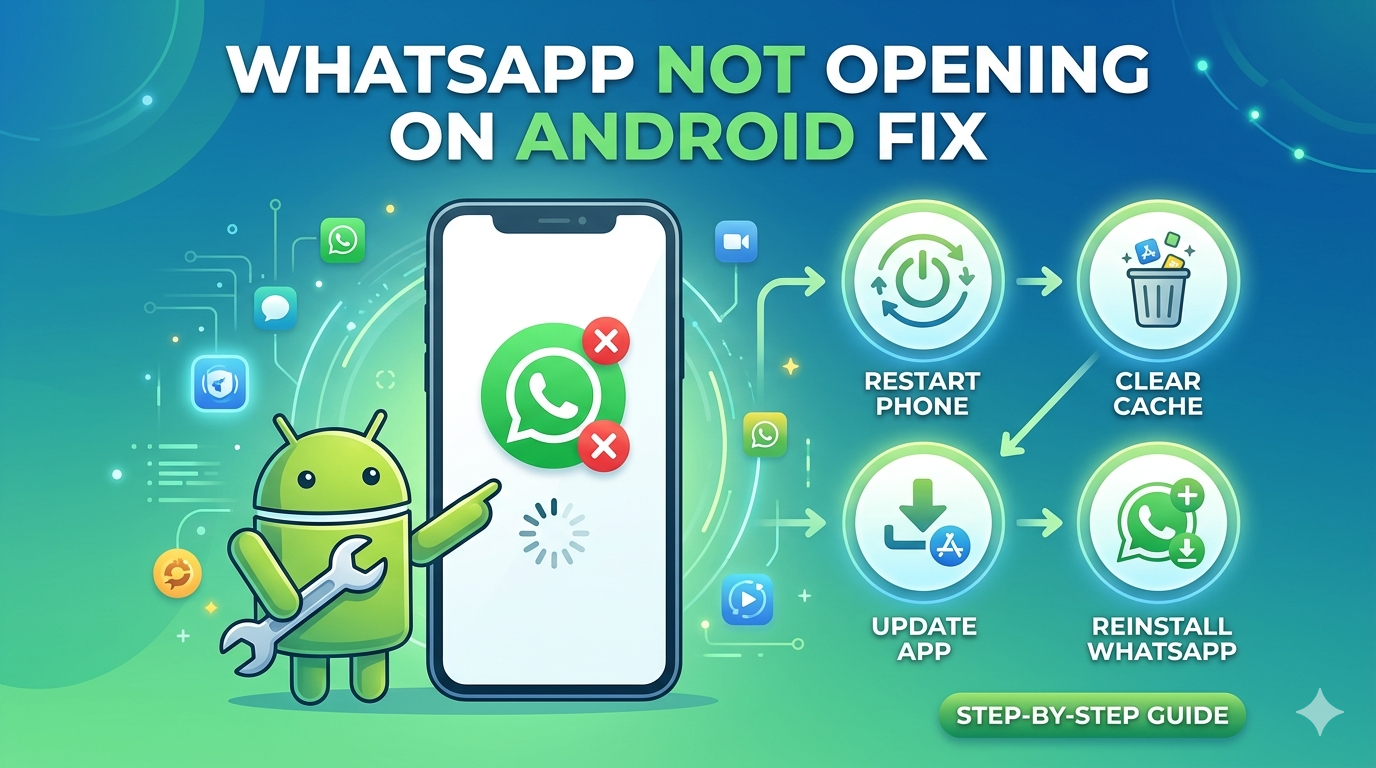
WhatsApp is one of the most widely used messaging apps in the world, making it frustrating when the app suddenly refuses to open. Many Android users encounter issues where WhatsApp gets stuck on the loading screen, crashes immediately after opening, or simply refuses to launch altogether.
If you’re experiencing this problem, don’t panic. In most cases, the issue can be fixed without losing your chats or media. This guide explains the most effective solutions to get WhatsApp working again on Android.
Why Is WhatsApp Not Opening on Android?
Several factors can prevent WhatsApp from opening properly, including:
- Temporary software glitches
- Insufficient storage space
- Corrupted app cache
- Outdated WhatsApp version
- Android system bugs
- Network connectivity issues
- Battery optimization restrictions
- Corrupted application files
Fortunately, most of these problems are easy to resolve.
1. Restart Your Android Phone
Before trying advanced solutions, restart your device.
To do this:
- Press and hold the Power button.
- Tap Restart.
- Wait for your phone to reboot.
- Open WhatsApp again.
A simple reboot often fixes temporary software bugs.
2. Check Your Internet Connection
WhatsApp relies on an active internet connection.
Try the following:
- Turn Wi-Fi off and back on.
- Switch between Wi-Fi and mobile data.
- Enable Airplane Mode for 30 seconds and disable it again.
- Test whether other apps can access the internet.
If your connection is unstable, WhatsApp may fail to load properly.
3. Force Stop WhatsApp
Stopping the app completely can eliminate background glitches.
Steps:
- Open Settings.
- Go to Apps.
- Select WhatsApp.
- Tap Force Stop.
- Open WhatsApp again.
This refreshes the app without deleting your messages.
4. Clear WhatsApp Cache
Corrupted cache files are one of the most common reasons WhatsApp refuses to open.
Here’s how:
- Open Settings.
- Tap Apps.
- Select WhatsApp.
- Tap Storage.
- Choose Clear Cache.
Do not select Clear Data, as this may remove app settings and require you to set up WhatsApp again.
5. Update WhatsApp
Using an outdated version of WhatsApp can cause compatibility issues.
To update:
- Open Google Play Store.
- Search for WhatsApp.
- Tap Update if available.
- Restart your phone.
Developers frequently release updates that fix bugs and improve performance.
6. Update Android Software
Old Android versions may contain bugs that affect apps.
To update:
- Open Settings.
- Tap Software Update.
- Select Download and Install.
- Install available updates.
After updating, reopen WhatsApp.
7. Check Available Storage Space
Insufficient storage can prevent apps from opening.
To check:
- Open Settings.
- Tap Storage.
- Ensure at least 1 GB of free space is available.
Delete:
- Large videos
- Unused apps
- Duplicate photos
- Downloaded files
Freeing storage often restores normal app performance.
8. Disable Battery Optimization
Some Android devices restrict apps running in the background.
To disable battery optimization:
- Open Settings.
- Go to Battery.
- Tap Battery Optimization.
- Find WhatsApp.
- Select Don’t Optimize.
This prevents Android from limiting the app.
9. Check Whether WhatsApp Servers Are Down
Sometimes the issue isn’t your phone.
When WhatsApp servers experience outages, users around the world may be unable to access the app.
Signs include:
- Endless loading screen
- Messages not sending
- App refusing to connect
If servers are down, you’ll need to wait until Meta restores service.
10. Reinstall WhatsApp
If none of the above solutions work, reinstalling the app may help.
Before uninstalling:
- Ensure your chats are backed up to Google Drive.
Then:
- Uninstall WhatsApp.
- Restart your phone.
- Download WhatsApp again from Google Play Store.
- Restore your backup.
This replaces corrupted files with fresh ones.
11. Boot Your Device in Safe Mode
Third-party apps sometimes interfere with WhatsApp.
Safe Mode temporarily disables those apps.
If WhatsApp works in Safe Mode, one of your installed applications is causing the problem.
Remove recently installed apps and test again.
12. Reset App Preferences
Resetting app preferences can solve hidden software conflicts.
To do this:
- Open Settings.
- Go to Apps.
- Tap the three-dot menu.
- Select Reset App Preferences.
This won’t delete personal files or messages.
Frequently Asked Questions
Why does WhatsApp keep crashing on Android?
Crashes usually occur because of corrupted cache files, insufficient storage, outdated software, or app conflicts.
Will clearing WhatsApp cache delete chats?
No. Clearing cache removes temporary files only. Your messages remain safe.
Why is WhatsApp stuck on the loading screen?
The problem may be caused by poor internet connectivity, server outages, or corrupted app files.
Can reinstalling WhatsApp delete my chats?
Yes, if you do not create a backup first. Always back up your conversations before uninstalling the app.
Final Thoughts
When WhatsApp refuses to open on Android, the issue is usually easy to fix. Start with simple solutions like restarting your phone and clearing the app cache. If the problem persists, updating WhatsApp or reinstalling the app often restores normal functionality.
In most cases, one of these twelve solutions will get WhatsApp running again without losing your important conversations.

