


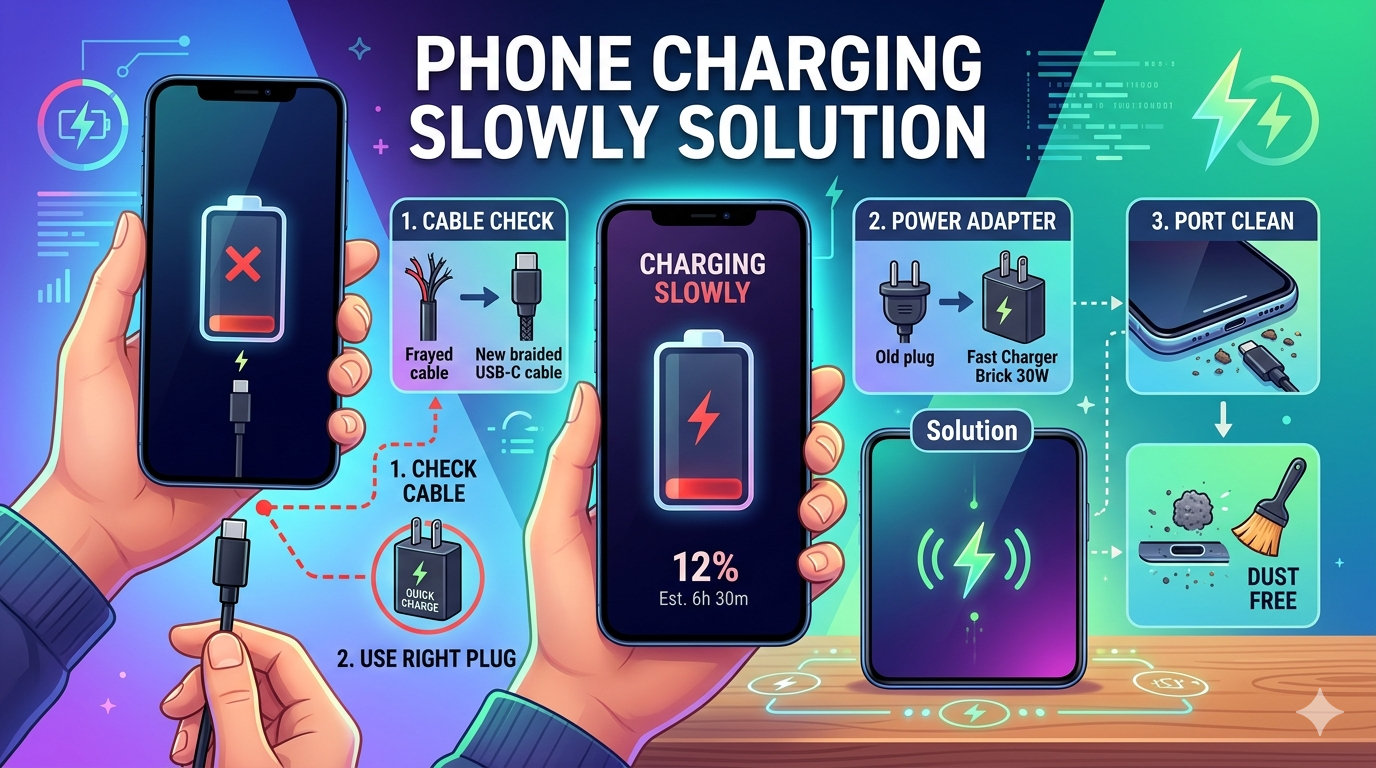
A smartphone that charges slowly can be frustrating, especially when you need it urgently. Whether you are using an Android or iPhone, slow charging is usually caused by hardware issues, software bugs, or poor charging habits. The good news is that most of these problems can be fixed without buying a new phone.
In this guide, you will learn the best phone charging slowly solutions, ranked from most effective to least common. These fixes are practical, tested, and suitable for all users.
🔝 1. Check Your Charging Cable and Adapter (Most Common Cause)
The number one reason for slow charging is a faulty or low-quality charger.
Why it happens:
- Damaged cable wires
- Cheap third-party chargers
- Loose USB connections
- Incompatible fast-charging support
Solution:
- Use the original charger that came with your phone
- Replace worn-out cables immediately
- Use certified fast chargers (USB-C PD or OEM)
👉 Tip: Even a slightly damaged cable can reduce charging speed by up to 70%.
🔌 2. Clean the Charging Port
Dust, lint, and dirt can block proper contact between your charger and phone.
Signs:
- Charger fits loosely
- Charging starts and stops randomly
Fix:
- Use a dry toothbrush or toothpick gently
- Avoid metal objects
- Use compressed air if available
A clean port can instantly improve charging speed.
⚡ 3. Enable Airplane Mode While Charging
When your phone is searching for signals, battery consumption continues.
Benefits:
- Stops background network activity
- Reduces battery drain
- Improves charging efficiency by 10–20%
👉 Turn on Airplane Mode before plugging in your charger for faster results.
📱 4. Close Background Apps
Apps running in the background consume power while your phone is charging.
Common battery-draining apps:
- Social media apps (Facebook, Instagram, TikTok)
- GPS/navigation apps
- Streaming apps
Solution:
- Close all apps manually
- Enable “Restrict background activity”
- Restart your phone before charging
🔥 5. Avoid Using Phone While Charging
Using your phone while charging creates heat and slows down power intake.
Problems caused:
- Overheating
- Battery stress
- Reduced charging speed
👉 For best results, leave your phone idle while charging.
🌡️ 6. Control Phone Temperature
Heat is one of the biggest enemies of fast charging.
If your phone is hot:
- Remove the case while charging
- Keep it in a cool place
- Avoid direct sunlight
Most smartphones automatically slow charging when overheating is detected.
🔋 7. Check Battery Health
A degraded battery cannot hold or receive charge efficiently.
Signs of battery damage:
- Phone drains quickly
- Charging is inconsistent
- Phone shuts down unexpectedly
Solution:
- Replace the battery if health is below 80%
- Visit an authorized repair center
⚙️ 8. Enable Fast Charging Settings
Some phones have fast charging disabled by default.
Steps:
- Go to Settings > Battery
- Enable “Fast Charging” or “Super Charging”
- Restart device after enabling
🔄 9. Update Your Phone Software
Software bugs can affect charging speed.
Why updates help:
- Fix battery optimization issues
- Improve power management
- Enhance charging compatibility
👉 Always keep your phone updated.
🔌 10. Use a Wall Socket Instead of USB Ports
Charging from laptops or power banks can be slower.
Comparison:
- Wall socket: Fastest charging
- Laptop USB: Slow charging
- Car charger: Moderate speed
👉 Always plug directly into a wall outlet for best performance.
🧠 11. Reset Battery Calibration (Advanced Fix)
Sometimes your phone misreads battery levels.
Fix:
- Drain battery to 0%
- Charge uninterrupted to 100%
- Repeat once every few weeks
This helps recalibrate battery reporting.
🚫 12. Avoid Cheap Power Banks
Low-quality power banks deliver unstable voltage.
Risk:
- Slow charging
- Battery damage
- Overheating
👉 Use branded power banks with fast charge support.
🔧 13. Check for Hardware Damage
If none of the above works, the issue may be hardware-related.
Possible issues:
- Damaged charging IC
- Faulty motherboard connection
- Broken charging port
👉 Visit a certified technician.
📶 14. Turn Off Connectivity Features
Wi-Fi, Bluetooth, and mobile data all consume power.
Solution:
- Turn off Wi-Fi
- Disable Bluetooth
- Turn off location services
This allows more power to go into charging.
🧾 15. Factory Reset (Last Option)
If software issues persist, a reset may help.
Before doing this:
- Backup your data
- Sync contacts and files
Benefits:
- Removes malware
- Fixes system bugs
- Restores performance
🧠 Final Thoughts
Slow charging is usually not a serious problem. In most cases, it comes down to a bad cable, dirty charging port, or background apps draining power.
By following the steps above, you can significantly improve charging speed without spending much money. If the issue continues after all fixes, then it’s likely a hardware problem requiring professional repair.

