


If you constantly find yourself running out of mobile data long before your billing cycle ends, you are not alone. Modern smartphones are incredibly powerful, but that power often comes at the cost of high bandwidth consumption. Learning how to stop iPhone from consuming much data is essential for anyone looking to save money and avoid the frustration of a throttled connection.
Whether it is background syncing, high-definition streaming, or silent software updates, iOS has several features that quietly eat away at your data plan. In this comprehensive guide, we will explore the best iPhone data-saving tips and walk you through the exact settings you need to tweak to regain control of your cellular data usage.
Why Is My iPhone Using So Much Data?
Before diving into the solutions, it helps to understand exactly what is draining your data. If you are wondering, “Why is my iPhone using so much data?” the culprits are usually features designed to keep your phone seamlessly updated and connected.
Here are the most common causes of high data consumption:
- Background App Refresh: Apps constantly ping servers to fetch new data (like emails, weather updates, or news) even when you are not actively using them.
- Automatic App Updates: The App Store downloads hefty app updates over your cellular network instead of waiting for Wi-Fi.
- iCloud Photos Syncing: High-resolution photos and videos silently back up to the cloud while you are out and about.
- Streaming in HD: Watching YouTube, Netflix, or Apple TV in high definition without realizing you are not on Wi-Fi.
- Social Media Autoplay: Videos on Instagram, X (formerly Twitter), Facebook, and TikTok play automatically as you scroll.
- Personal Hotspot: Leaving your hotspot active, allowing connected laptops or secondary devices to run updates on your dime.
- Wi-Fi Assist: A built-in iOS feature that quietly switches you to mobile data when your Wi-Fi connection is weak.
Turn On Low Data Mode
If you need a quick fix to reduce cellular data usage on iPhone, Apple’s built-in Low Data Mode is your best friend. Introduced in iOS 13 and refined in subsequent updates, Low Data Mode on iPhone automatically halts background updates, pauses background tasks, and stops iCloud Photos from syncing until you connect to Wi-Fi.
Steps to enable Low Data Mode:
- Open the Settings app.
- Tap on Cellular (or Mobile Service, depending on your region).
- Select Cellular Data Options.
- Toggle on Low Data Mode.
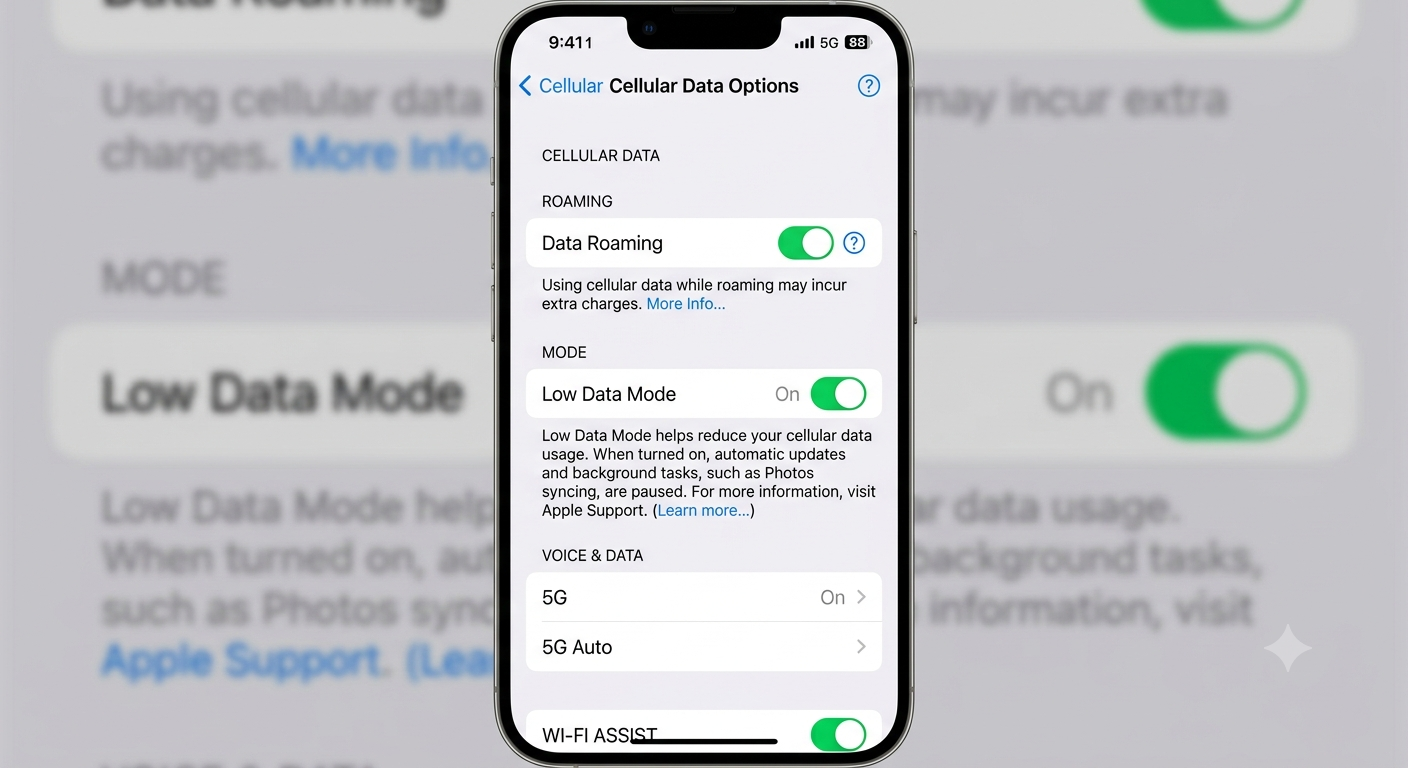
(For more technical details on how this feature alters specific app behaviors, you can check the official Apple Support documentation on Low Data Mode.)
Disable Background App Refresh
Apps pulling data in the background are a major reason for your iPhone using too much mobile data. You can choose to turn this off entirely or restrict it to only refresh when connected to Wi-Fi.
Steps to manage Background App Refresh:
- Go to Settings > General.
- Tap Background App Refresh.
- Tap Background App Refresh again at the top.
- Select Wi-Fi (recommended) or Off.
Alternatively, you can leave it on, but manually turn off individual apps you do not need to update in the background.
Turn Off Automatic App Updates Over Mobile Data
App updates can easily consume gigabytes of data if left unchecked. To save mobile data on iPhone, ensure these downloads occur only over a stable Wi-Fi connection.
Steps to restrict automatic updates:
- Go to Settings > App Store.
- Under the Cellular Data section, toggle off Automatic Downloads.
- You can also tap App Downloads and set it to Always Ask so you are prompted before any large files are downloaded over your cellular network.
Disable Wi-Fi Assist
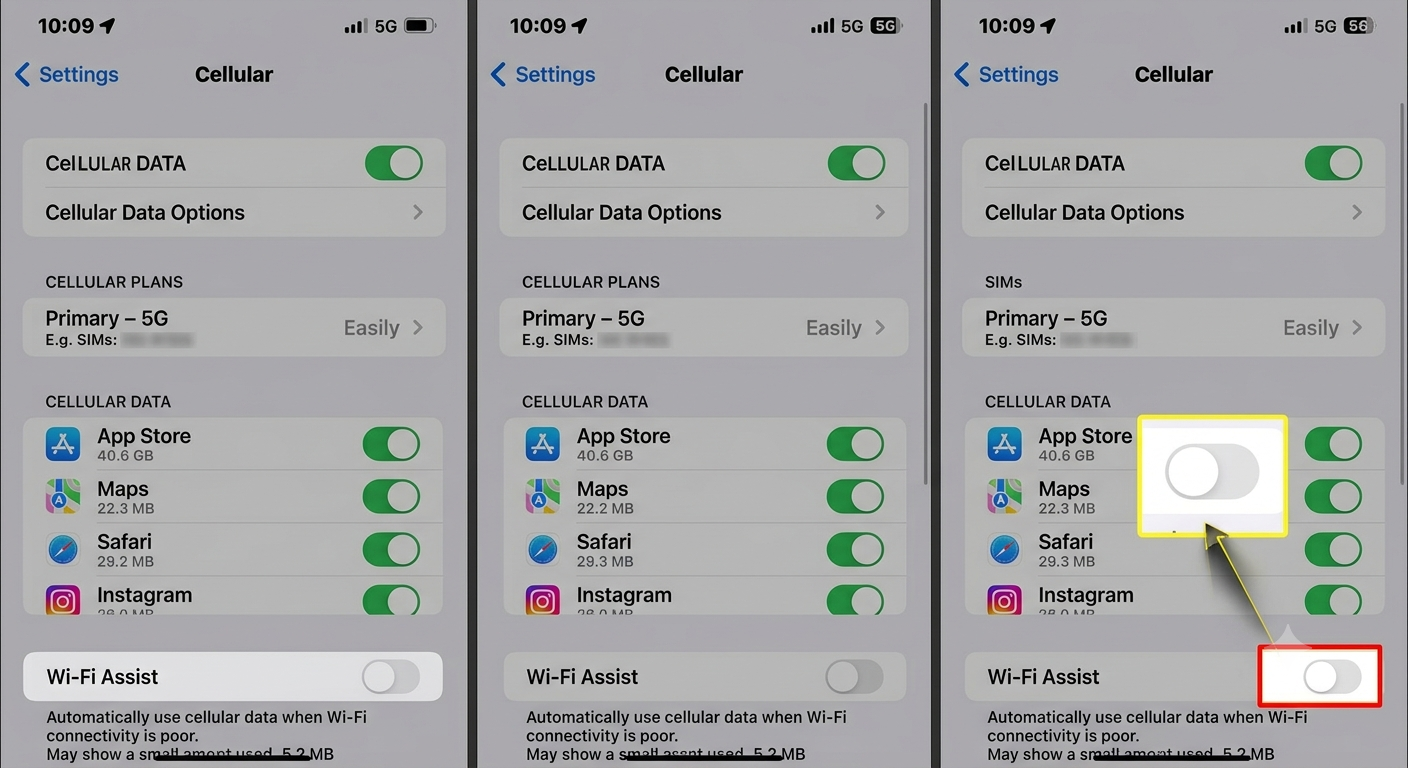
Wi-Fi Assist is designed to provide a seamless internet experience. If your Wi-Fi signal drops, it automatically bridges the gap using your mobile data. While convenient, it can silently drain your data cap if you linger on the edge of a weak Wi-Fi network.
Steps to turn off Wi-Fi Assist:
- Go to Settings > Cellular.
- Scroll all the way down to the very bottom of the page (past your list of apps).
- Toggle off Wi-Fi Assist.
Restrict Cellular Data for Specific Apps
Not all apps need internet access when you are away from home. You can drastically reduce data usage on iPhone by turning off cellular data for data-hungry apps, forcing them to use Wi-Fi only.
Steps to restrict app data:
- Go to Settings > Cellular.
- Scroll down to the list of installed apps.
- Toggle off the switch next to any app that doesn’t strictly need a cellular connection (e.g., heavy games, streaming apps, or cloud storage apps).
Reduce Video Streaming Quality
If you frequently watch videos on the go, high-resolution streaming is likely eating up your data plan. Most popular media apps have internal settings to throttle video quality.
- YouTube: Open the app, go to Settings > Video quality preferences, and set “On mobile networks” to Data saver.
- Netflix: Go to App Settings > Cellular Data Usage and select Save Data.
- TikTok: Go to Settings and Privacy> Data Saver, then toggle it on to reduce video resolution and load times.
Turn Off Automatic Downloads
Beyond app updates, your iPhone might be downloading Apple Music tracks, podcasts, or synced files over cellular data.
To stop this:
- For Music: Go to Settings > Music > Cellular Data, and toggle off Downloads.
- For Podcasts: Go to Settings > Podcasts, and under the Downloads section, ensure Cellular Data is turned off.
Monitor Your Data Usage
You cannot manage what you do not measure. Identifying exactly which apps are the culprits is a crucial step in learning how to stop your iPhone from consuming much data.
Steps to check your usage:
- Go to Settings > Cellular.
- Scroll down to the list of apps. Right beneath each app’s name, you will see exactly how much data it has consumed during the current period.
Use Wi-Fi Whenever Possible
Building the habit of delaying large data tasks is the most effective data-saving strategy. Ensure that you are connected to a secure Wi-Fi network before:
- Updating your iOS software.
- Backing up your device to iCloud.
- Downloading large Spotify playlists or Netflix movies for offline viewing.
- Sending or receiving high-resolution 4K videos via iMessage or WhatsApp.
Reset Cellular Data Statistics
To accurately monitor your consumption, you should align your iPhone’s data tracker with your carrier’s billing cycle. iOS does not reset these statistics automatically.
Steps to reset your statistics:
- Go to Settings > Cellular.
- Scroll to the very bottom of the page (below Wi-Fi Assist).
- Tap Reset Statistics. Do this on the first day of your new data plan to keep an accurate eye on your monthly usage.
Frequently Asked Questions (FAQs)
Why is my iPhone using data even when I’m not using it? Apps can use mobile data in the background for syncing, notifications, iCloud backups, and software updates unless these specific features are restricted in your settings.
Does Low Data Mode really save data? Yes. Low Data Mode limits background activity, pauses automatic downloads, reduces video streaming quality, and halts iCloud syncing, which significantly reduces overall data consumption.
Which apps use the most mobile data on an iPhone? Video streaming (YouTube, Netflix, TikTok), social media (Instagram, Facebook), cloud storage (iCloud, Google Drive), video calling (FaceTime, WhatsApp Video), and music streaming apps are typically the biggest consumers of mobile data.
How do I stop apps from using cellular data? Go to Settings > Cellular, scroll down to your list of apps, and switch off cellular access for the specific apps you only want to use on Wi-Fi.
Taking control of your digital footprint doesn’t have to be complicated. By implementing these settings—especially turning on Low Data Mode and turning off Background App Refresh—you will immediately notice a difference. Now that you know exactly how to stop your iPhone from consuming much data, you can browse, stream, and chat without the looming anxiety of data exhaustion or unexpected carrier charges.

